Choose a clear subject
Use a well-lit adult portrait or a pet photo. Leave space around the subject for the glass and snow.
Read the photo guideAI Snow Globe Photo Generator
Turn one portrait or pet photo into a Christmas snow globe. Save a PNG or play a short reveal from the original to the result.
JPG, PNG or WebP · Up to 8 MB
No app to install. You can compare and save the example without signing in.
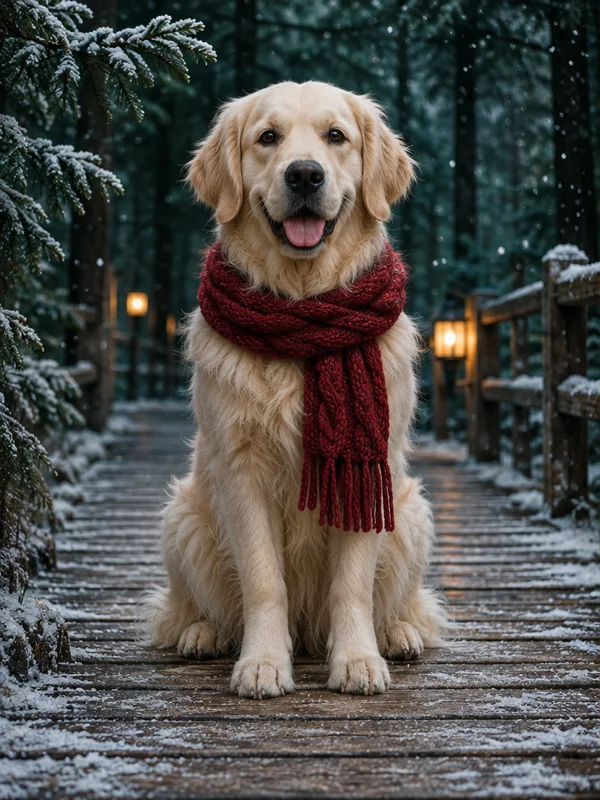
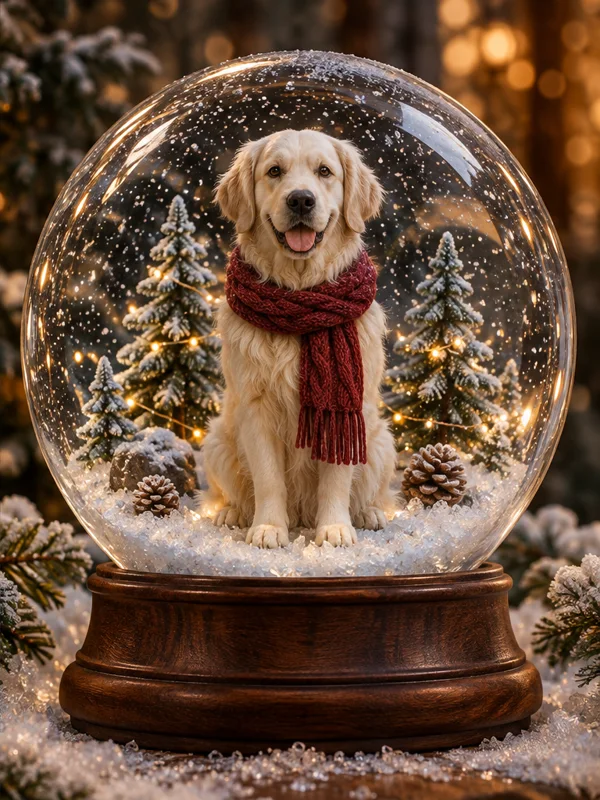
Compare the original with the studio sample and play its five-second reveal.
The starting photo
PNG · Full picture
5 seconds · Silent
Use a well-lit adult portrait or a pet photo. Leave space around the subject for the glass and snow.
Read the photo guideSelecting a file opens a local preview. When you submit, your photo is sent for review and generation.
How your photo is handledDownload the full result as a PNG, or save the split you chose. Select 9:16 for a vertical reveal.
See example resultsQuestions about access or your photos? Contact us.
Open the studio, choose one photo you have permission to use, sign in with Google, and select Generate snow globe photo. The effect is preset, so you can start with just the photo. Open the studio
Each IP address can submit up to 2 free generation attempts per day, shared by accounts on that address. The allowance resets at midnight UTC. An accepted attempt counts even if review or generation later fails.
Yes. Drag the divider on the sample and download the sample comparison PNG without an account. Sign in with Google to generate a result from your own photo.
Yes. Try a clear photo of your dog or cat with the face visible and room around the subject for the glass and winter scene. An adult portrait works well too. Read the photo guide
Choose one JPG, PNG, or WebP photo up to 8 MB. The browser also checks that the image is at most 24 megapixels and no more than 8,192 pixels on either side.
Yes. Open My assets and choose Download image on the finished card to save the snow globe as a PNG. The card also lets you switch between the image and its reveal animation. Open My assets
Drag the divider in the studio to control how much of the original and the generated image you see. Download comparison saves the split you chose as one PNG.
The studio offers the original ratio, 16:9, 9:16, 3:4 and 4:3 for comparison images and reveal videos. Choose 9:16 for a vertical Story or 16:9 for a landscape export.
The silent reveal lasts 5 seconds by default. You can choose 2 to 10 seconds. The studio exports MP4 where supported, with WebM as a browser fallback.
Yes. The finished card can play the reveal directly in the browser. Open My assets to revisit your completed work. If the original-to-result video was not saved, the card can still reveal the finished image.
Check the cards under the studio. A card shows whether the request is waiting, generating, under review, complete, or failed. Completed work also appears in My assets.
Use a photo you own or have permission to use. Anyone pictured must be an adult who has agreed to the use. Photos of minors and public figures are not accepted. See acceptable use
Choosing a file only opens a local preview. The photo is sent for review and generation when you submit the request. A saved reveal animation may also contain the original photo. See the privacy notice
You open them while signed in to your own account. Authorized staff can view an approved image when handling a report or a support request.
Use the data request page to ask for access, correction or deletion. Requests are reviewed by a person. The privacy notice explains which records may be held by outside services. Open the data request page